





 Activities
Text page
A text page is suitable when you want to give students a place to express themselves in writing, give written instructions and questions, or a framework for a writing assignment.
Add a text page
- Open the activity.
- Select Add (+) at the bottom right.
- Select Text.
The text page is only visible to the teacher until it is handed out. Select Hand out to give a blank text page to all or selected students. Once the text page is handed out, the teacher can monitor the students' work as they write and save.
Hand out text page with content
As a teacher, you can add content to the text page before it is handed out. For example, you can ask questions, add writing organizers and templates, or structure the text with headings, bullet points, and tables.
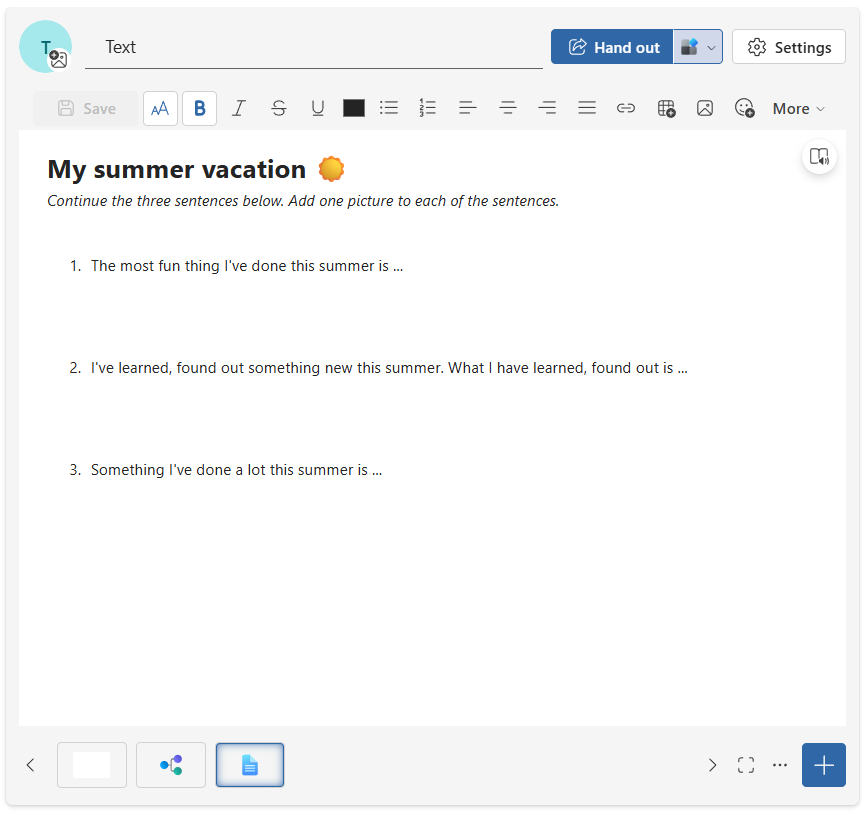
Once the text page is ready, hand it out to the students. If the students are to write and edit the text page, they must have Active access to the activity. With read-only access, they can only read the content.
Write together
When students are placed in the same group in an activity, the pages will be the group's collaborative areas that everyone can edit. This means that students in the same group can write on the same text page simultaneously.
Note: When writing simultaneously with others in the same group, conflicts may occur if multiple people edit the same part of the text at the same time. It may therefore be wise to designate different parts of the text for each student in the group.
Immersive Reader
At the top right corner of the text page, you will find the button for Immersive Reader. This is a tool to support reading and writing by highlighting, providing image support, translating, reading aloud, and adjusting the display of the text as needed.