





 Activities
Hand out pages
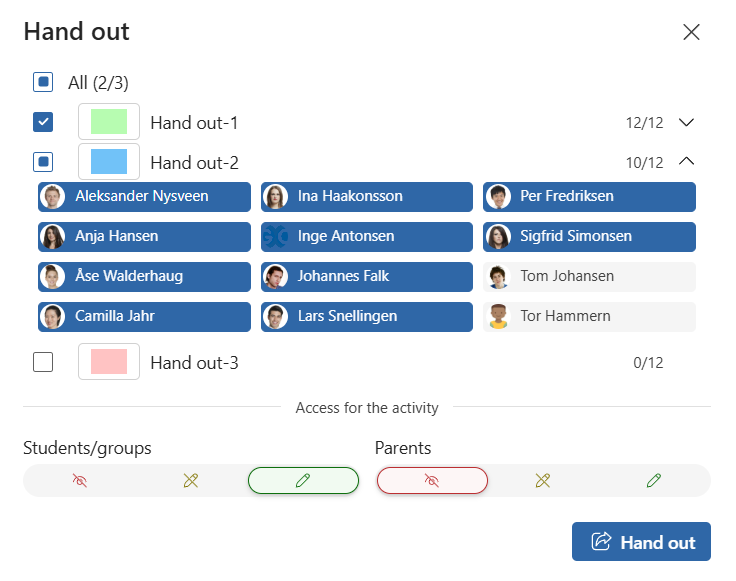
Press Hand out. Select which pages you want to hand out and which students should receive the pages you want to hand out. For each individual page you hand out, you can choose which students should receive the page. All, one or several, or none.
At the bottom you can change the access level to the activity before pressing Hand out.
Which pages are handed out
At the bottom of the activity, you can see which pages have been handed out to all, which have been handed out to at least one student, and which have not been handed out to any of the students.

Note: A page can only be handed out to the same student once. If you want to hand out the same page multiple times, you must duplicate the page before handing it out again.
Deleting pages
Delete page from the activity: Delete the page for all students who have received the page, or select which students you want to delete the page for.
Delete page at the student: The page is only deleted from the selected student.
Note: Students cannot delete pages handed out by the teacher. Students (and parents) can delete pages added inside the student if they have active access.
Handed out and individual pages
From the student view, you can see which pages have been handed out by the teacher (blue details), and which have been created at the student by the teacher, student, or parent.

Hand out pages from apps
If the organization has connected third-party apps to GO, you will be able to hand out pages from apps in an activity. Select the Apps icon to the right of Hand out. Choose your content and follow the setup. When the setup is complete, the page from the app will be handed out to the students.
Remember to change the access to the activity to make the handed out page available to the students.