




'%20d='m8.46%201.9.99.39c.35.14.74.14%201.1%200l.99-.4c1.2-.47%202.58.1%203.1%201.3l.42.97c.15.35.43.62.78.77l.98.43c1.19.52%201.76%201.89%201.28%203.1l-.39%201a1.5%201.5%200%200%200%200%201.09l.39.99a2.42%202.42%200%200%201-1.29%203.1l-.97.43a1.5%201.5%200%200%200-.78.77l-.42.98a2.42%202.42%200%200%201-3.1%201.28l-1-.39a1.5%201.5%200%200%200-1.1%200l-.98.4a2.42%202.42%200%200%201-3.1-1.3l-.43-.97a1.5%201.5%200%200%200-.77-.77l-.98-.43a2.42%202.42%200%200%201-1.28-3.1l.38-.99a1.5%201.5%200%200%200%200-1.1l-.38-.99a2.42%202.42%200%200%201%201.28-3.1l.98-.43c.34-.15.62-.42.77-.77l.43-.98a2.42%202.42%200%200%201%203.1-1.28'/%3e%3cpath%20fill='url(%23b)'%20fill-opacity='.7'%20d='m8.46%201.9.99.39c.35.14.74.14%201.1%200l.99-.4c1.2-.47%202.58.1%203.1%201.3l.42.97c.15.35.43.62.78.77l.98.43c1.19.52%201.76%201.89%201.28%203.1l-.39%201a1.5%201.5%200%200%200%200%201.09l.39.99a2.42%202.42%200%200%201-1.29%203.1l-.97.43a1.5%201.5%200%200%200-.78.77l-.42.98a2.42%202.42%200%200%201-3.1%201.28l-1-.39a1.5%201.5%200%200%200-1.1%200l-.98.4a2.42%202.42%200%200%201-3.1-1.3l-.43-.97a1.5%201.5%200%200%200-.77-.77l-.98-.43a2.42%202.42%200%200%201-1.28-3.1l.38-.99a1.5%201.5%200%200%200%200-1.1l-.38-.99a2.42%202.42%200%200%201%201.28-3.1l.98-.43c.34-.15.62-.42.77-.77l.43-.98a2.42%202.42%200%200%201%203.1-1.28'/%3e%3cpath%20fill='url(%23c)'%20fill-opacity='.9'%20d='M8%207a2%202%200%201%201%204%200%202%202%200%200%201-4%200m-.5%203h5c.82%200%201.5.67%201.5%201.5%200%201.11-.47%202-1.22%202.61-.74.6-1.73.89-2.79.89a4.43%204.43%200%200%201-2.79-.89A3.25%203.25%200%200%201%206%2011.5c0-.83.66-1.5%201.5-1.5'/%3e%3cdefs%3e%3clinearGradient%20id='a'%20x1='4.48'%20x2='12.75'%20y1='.81'%20y2='19.19'%20gradientUnits='userSpaceOnUse'%3e%3cstop%20stop-color='%231ec8b0'/%3e%3cstop%20offset='1'%20stop-color='%232764e7'/%3e%3c/linearGradient%3e%3clinearGradient%20id='b'%20x1='12.56'%20x2='15.84'%20y1='3.76'%20y2='20.05'%20gradientUnits='userSpaceOnUse'%3e%3cstop%20offset='.53'%20stop-color='%23ff6ce8'%20stop-opacity='0'/%3e%3cstop%20offset='1'%20stop-color='%23ff6ce8'/%3e%3c/linearGradient%3e%3clinearGradient%20id='c'%20x1='16'%20x2='-1.56'%20y1='23.57'%20y2='-2.19'%20gradientUnits='userSpaceOnUse'%3e%3cstop%20stop-color='%239deaff'/%3e%3cstop%20offset='1'%20stop-color='%23fff'/%3e%3c/linearGradient%3e%3c/defs%3e%3c/svg%3e) ILP
ILPWhat does the ILP contain?
The Individual Learning Plan (ILP) is often used in connection with parent-teacher conferences and is a key part of effective collaboration between school and home. Pre-made ILP templates make it easy for teachers to document progress, while students and parents get a clear picture of the way forward.
Visibility for students and parents
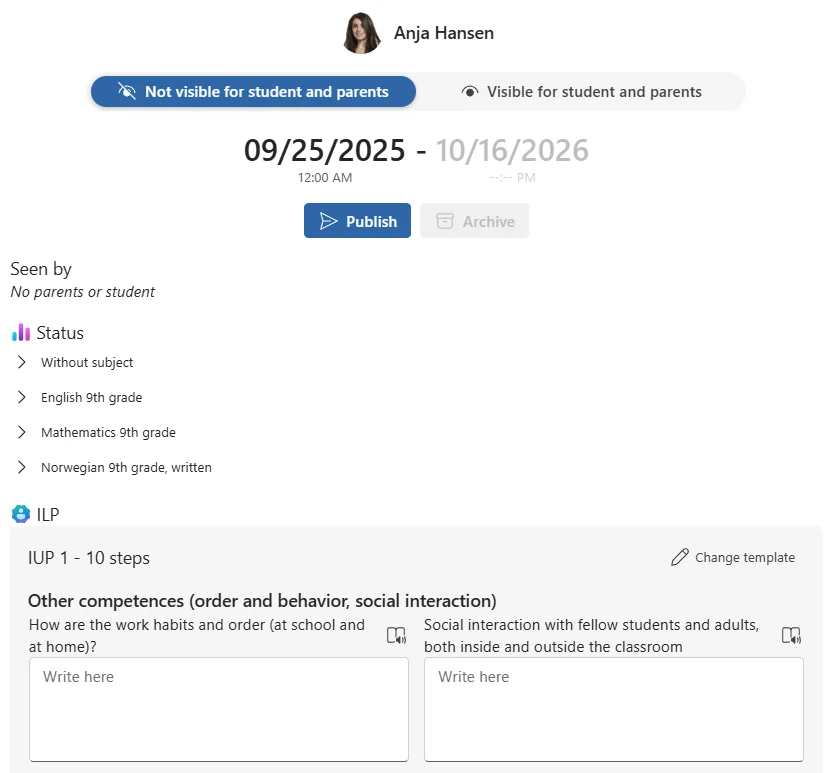
The buttons indicate whether the ILP is visible to student and parents.
Period duration
The date and time interval indicate the period's start and end. The end date is set when the ILP is published and made visible to student and parents.
Publish/Edit, and archive
Publish: The ILP becomes visible to student and parents. The period ends.
Edit: The ILP is not visible to student and parents. The period continues.
Archive: The published ILP is archived and can no longer be edited. A new ILP period starts.
Seen by
Indicates whether a student or parent has opened the ILP after it was published and made visible. If a parent has opened the ILP, this is also shown by a green eye icon in the student list.
Status
Under Status, all assessments from activities and reviews are collected and organized by subject for the period covered by the ILP.
ILP template
This area contains text fields designed by a manager or administrator. The text fields can only be edited when the ILP is not published.
Change ILP template
To change the ILP template, select Change template in the upper-right corner of the ILP. You can only change the template for ILPs that are not published.
Files
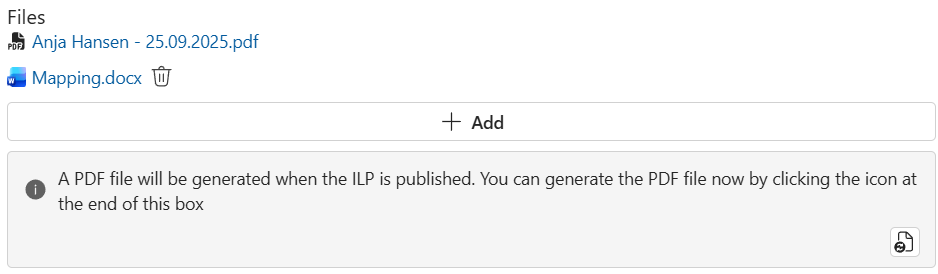
Teachers can add files. This must be done before the ILP is published.
PDF generation
When the ILP is published, a PDF document of the entire ILP is generated. Click the icon in the lower-right corner to generate and preview the PDF before publishing the ILP.